Connect wallet
PrediX offers 2 sign-in methods, you maintain full control of your assets while trading at the best market prices.
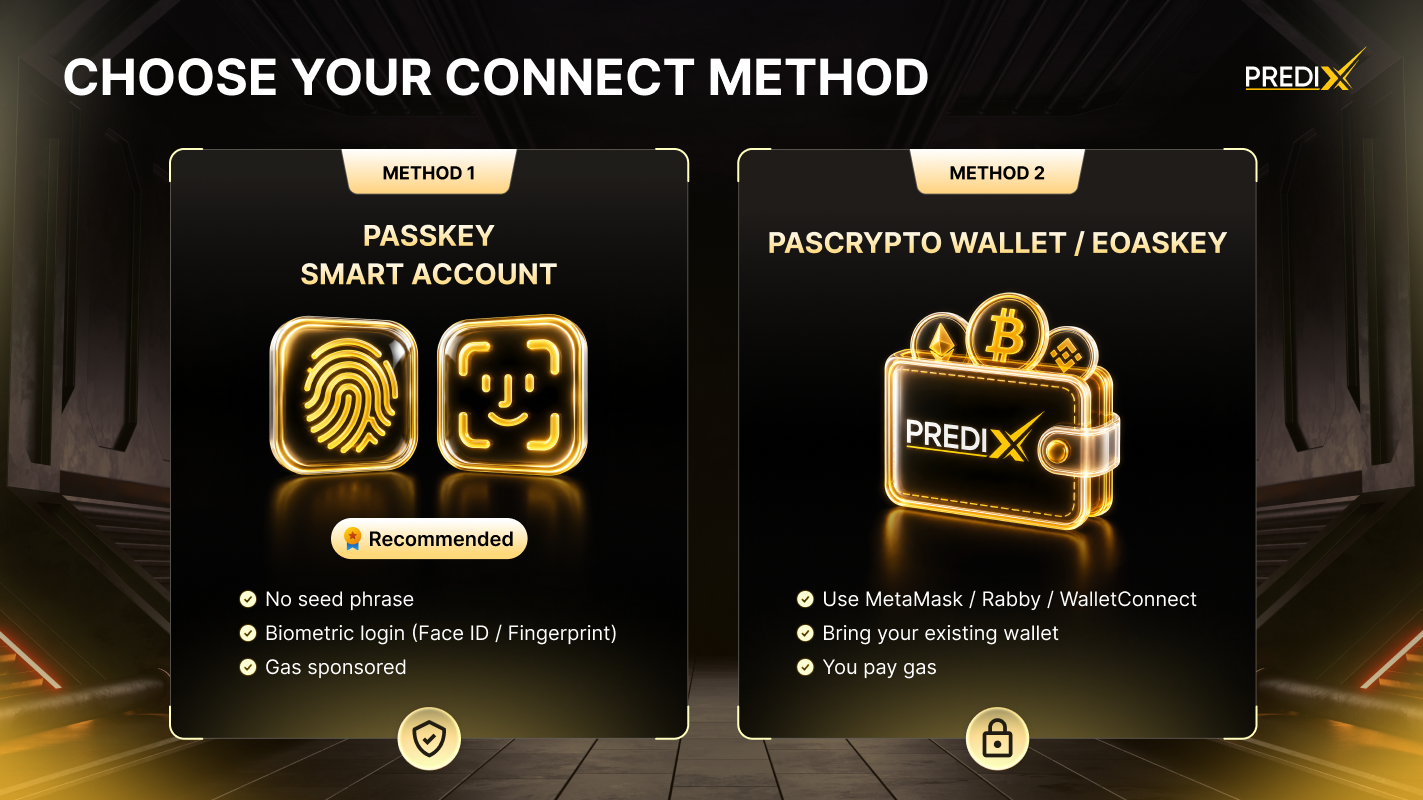
Choose connect method
Section titled “Choose connect method”| Passkey + Smart Account | Crypto Wallet (EOA) | |
|---|---|---|
| Experience | Web2-like, biometric | Traditional web3, sign each tx |
| Browser extension | Not required | Required (MetaMask, Rainbow…) |
| Backup & recovery | Cloud sync (iCloud / Google), or a second device | BIP-39 seed phrase (12-24 words) |
| Hardware wallet | No (private key in Secure Enclave) | Yes (Ledger, Trezor) |
| Gas fees | Pay via paymaster (USDC) | Pay ETH directly (Unichain is cheap ~$0.001-0.01/tx) |
| Batch transactions | Yes (1-click [approve, swap] atomic) |
No (2 separate txs) |
| First-time sign-up | ~5 seconds biometric | Already have a wallet → instant |
| Best for | New users · fast onboarding | DeFi users · large custody · hardware wallets |
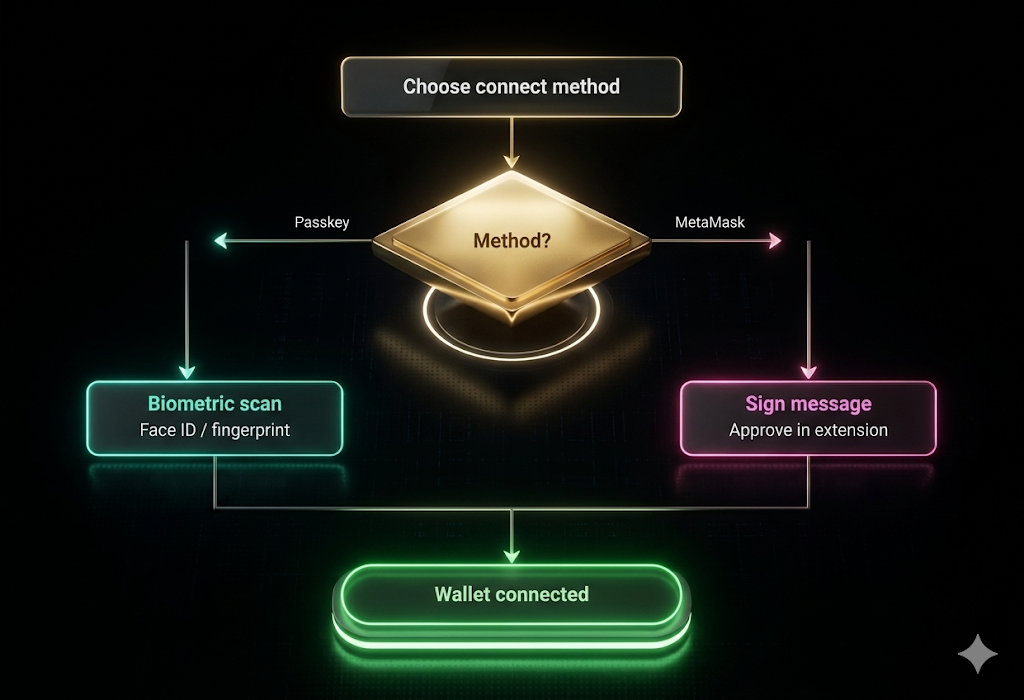
Choose connect method: Passkey or Crypto Wallet - both non-custodial
Method 1: Passkey + Smart Account
Section titled “Method 1: Passkey + Smart Account”Passkeys use the WebAuthn standard - biometric (Touch ID, Face ID, Windows Hello) or your device PIN for authentication. The private key is generated and stored in the Secure Enclave / TPM and cannot be exported.
[Insert Video Here]
1. How to login?
Section titled “1. How to login?”-
Step 1: Access the Portal
- Open your browser and navigate to beta.predixpro.io
- Click the “Sign up” button to begin.
-
Step 2: Choose Authentication Method
- From the available options, select “Continue with Passkey”.
-
Step 3: Biometric Verification
- Your browser will trigger a system prompt for biometric authentication (such as FaceID, TouchID, or Windows Hello).
- Confirm the prompt to verify your identity securely.
-
Step 4: Smart Account Generation
- Your Smart account counterfactual address will appear immediately.
2. Backup your account
Section titled “2. Backup your account”Choose at least one backup method on sign-up:
iCloud Keychain
Apple-native passkey sync
Using the same Apple ID via iCloud Keychain.Passkeys automatically sync across:
- iPhone
- iPad
- Mac
Best for:
- Apple ecosystem users
- seamless multi-device login
- Face ID / Touch ID authentication
Google Password Manager
Cross-device passkey access
Allowing fast sign-in across desktop and mobile, Passkeys sync automatically across:
- Android devices
- Chrome browsers
- Google accounts
Best for:
- Android users
- Chrome-first workflows
- Multi-device convenience
Hardware Key
Physical security authentication
Authentication requires plugging in or tapping the hardware key, Passkeys are stored directly on:
- YubiKey
- Titan Key
- Other FIDO hardware devices
Best for:
- Maximum account security
- Cold authentication
- Advanced users & institutions
3. Recovery - Lost Device
Section titled “3. Recovery - Lost Device”| SCENARIO | WHAT TO DO? |
|---|---|
|
✅ Sign in on a new device with the same Apple ID / Google account - Passkey restores automatically |
|
✅ Use the second device to authenticate, then re-pair a new device |
|
✅ Plug in the Hardware Key on any device to restore access |
|
❌ Wallet is unrecoverable |
Method 2: Crypto Wallet (EOA)
Section titled “Method 2: Crypto Wallet (EOA)”Use your existing Web3 wallet - MetaMask, Rainbow, Coinbase Wallet, or any wallet that supports WalletConnect/Hardware Wallet.
1. How to connect Web3 wallet?
Section titled “1. How to connect Web3 wallet?”-
Step 1: Initiate Connection
- Navigate to the app header and click the “Connect Wallet” button.
-
Step 2: Select Your Provider
- Choose your preferred wallet from the list (e.g., MetaMask, Rainbow, WalletConnect, or Ledger).
-
Step 3: Approve the Request
- Your wallet extension or app will trigger a pop-up.
- Approve the connection request to link your wallet to the platform.
-
Step 4: Secure Sign-In (SIWE)
- Sign the SIWE (Sign-In With Ethereum) message to verify ownership of your address.
2. When to use Web3 Wallet ?
Section titled “2. When to use Web3 Wallet ?”- You already have a DeFi workflow with MetaMask + hardware wallet.
- Large custody balance - want standard BIP-39 seed phrase backup.
- Integration with other tooling (Frame, Rabby, Safe multisig).
- Prefer full control with no paymaster dependency.
SIWE Session
Section titled “SIWE Session”Both methods use SIWE (EIP-4361) to create authenticated backend sessions through wallet signatures.
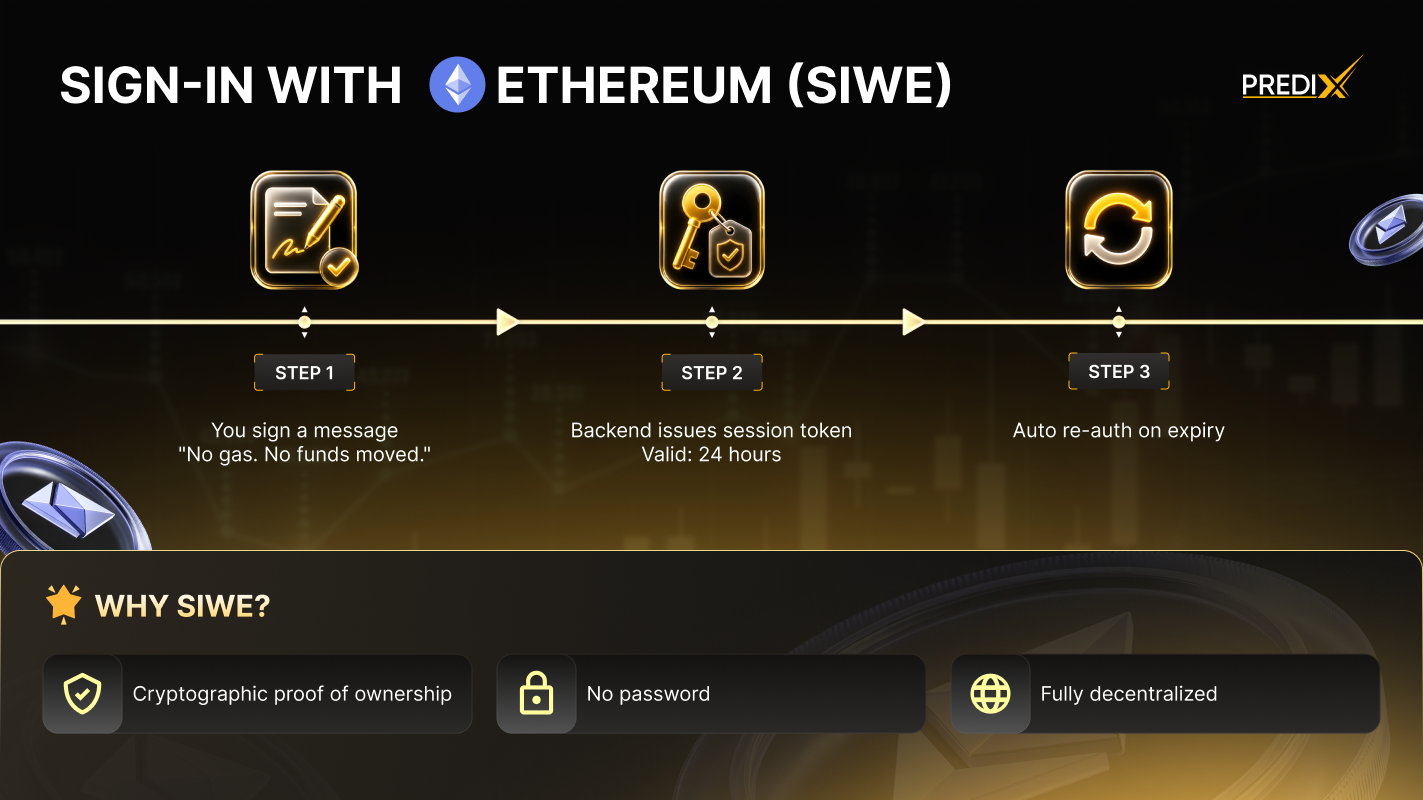
The client requests a challenge, the user signs the EIP-4361 message, and the backend verifies the ECDSA signature before creating a secure HTTP Only session cookie valid for 7 days.
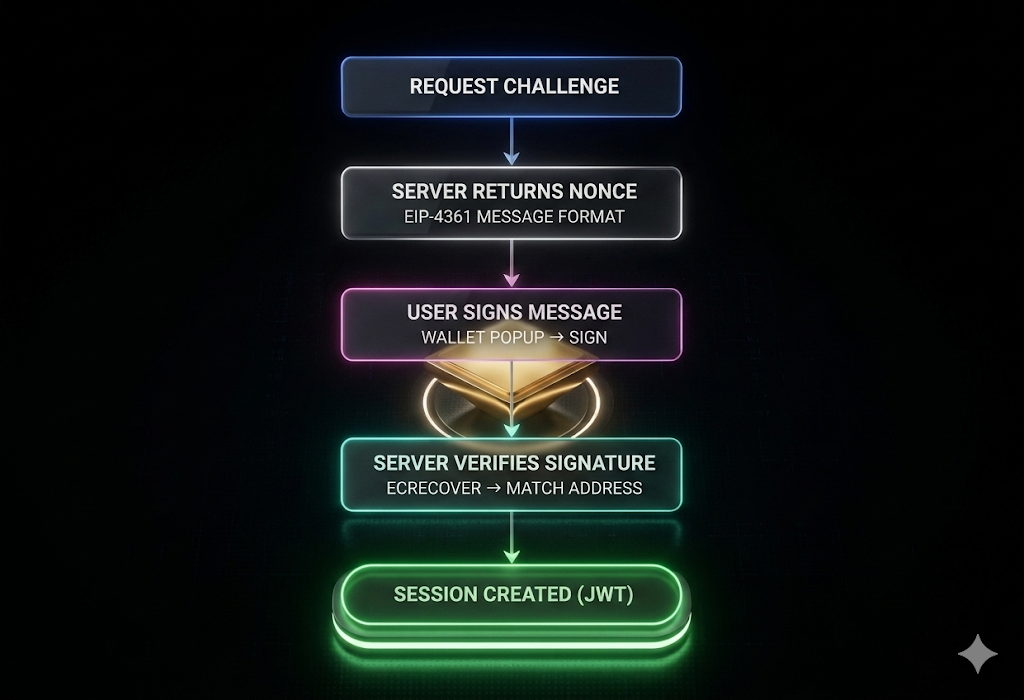
SIWE Authentication Flow