Managing Orders
Take full control of your PrediX Limit Orders. Easily view statuses, execute batch cancellations, track partial fills, and manage your portfolio with automated notifications.
After placing a limit order, you can monitor it, cancel it, or wait for it to fill. PrediX gives you full control over your resting orders - single cancel, batch cancel, and automatic cleanup when markets resolve.
Viewing Open Orders
Section titled “Viewing Open Orders”Navigate to Portfolio → Orders to view all your active orders across every market. Each row shows:
| Cover image | ||
|---|---|---|
| Market | The market the order is placed on | 25.png |
| Side | YES or NO | 27.png |
| Direction | Buy or Sell | 26 (1).png |
| Price | Your limit price (e.g., $0.45) | 28.png |
| Filled | Amount already matched (for partial fills) | 29.png |
| Remaining | Size still resting on the book | 34.jpg |
| Status | OPEN, PARTIAL, or PENDING | 30.png |
| Action | Cancel button | 31.png |
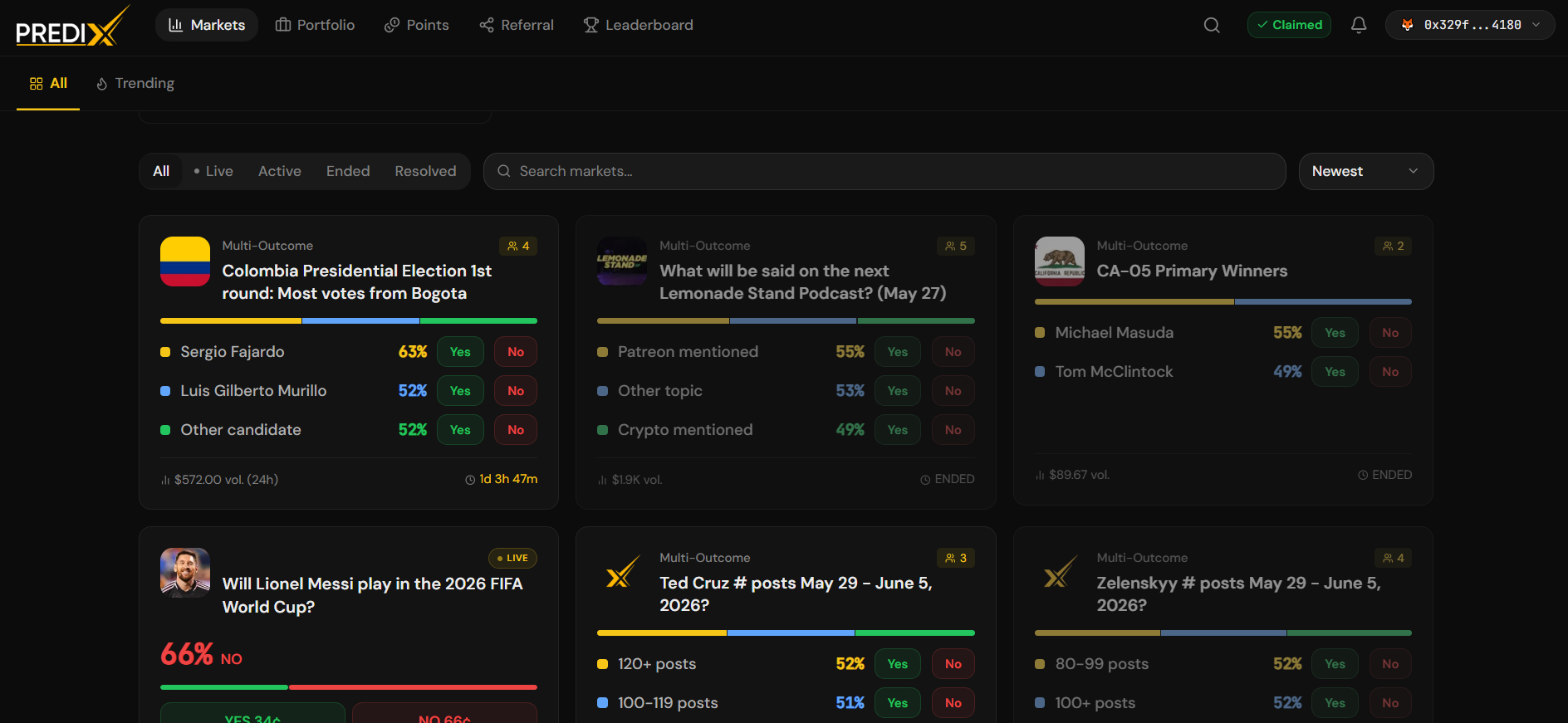
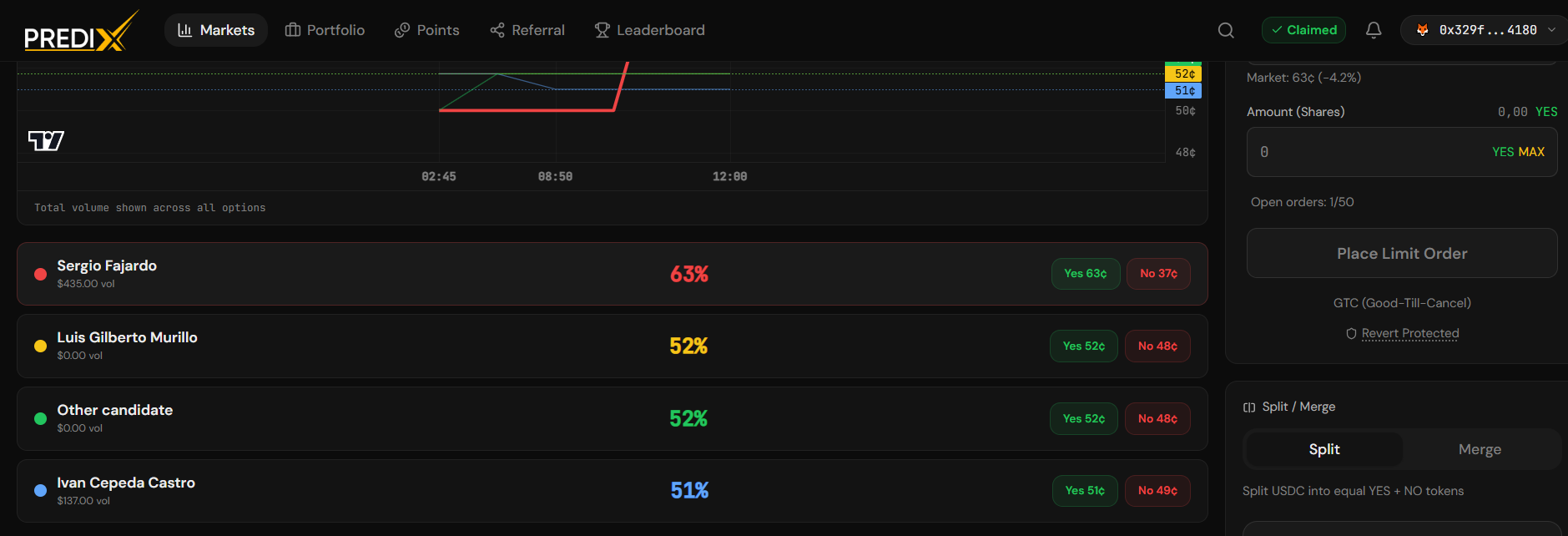
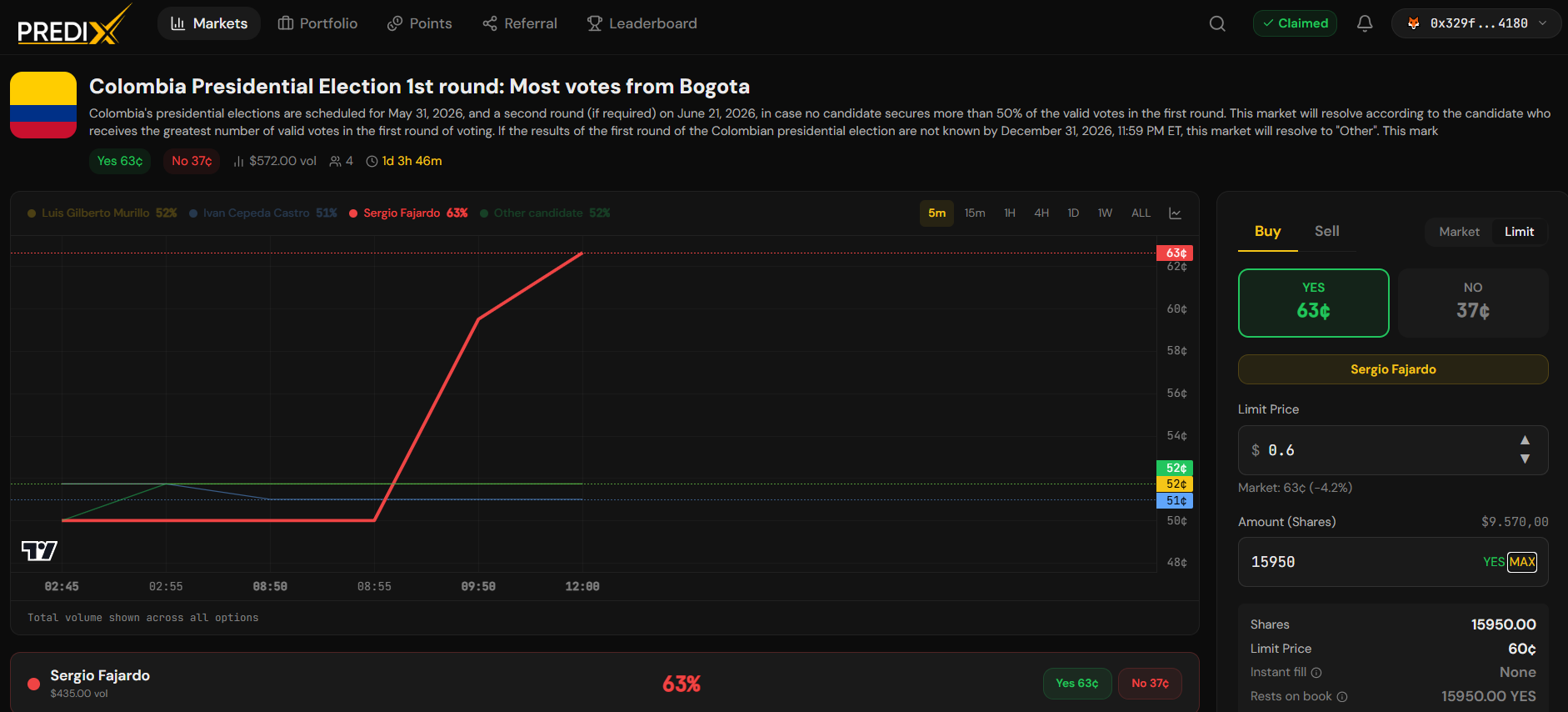
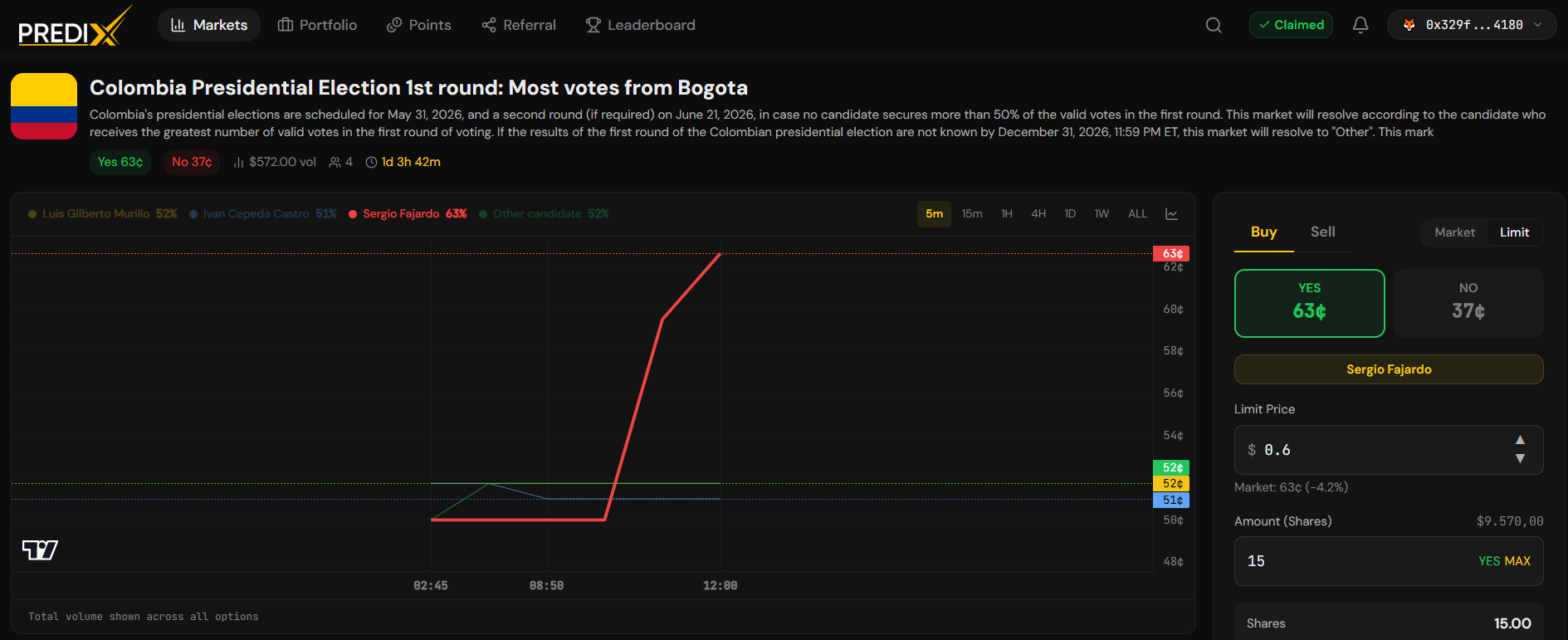
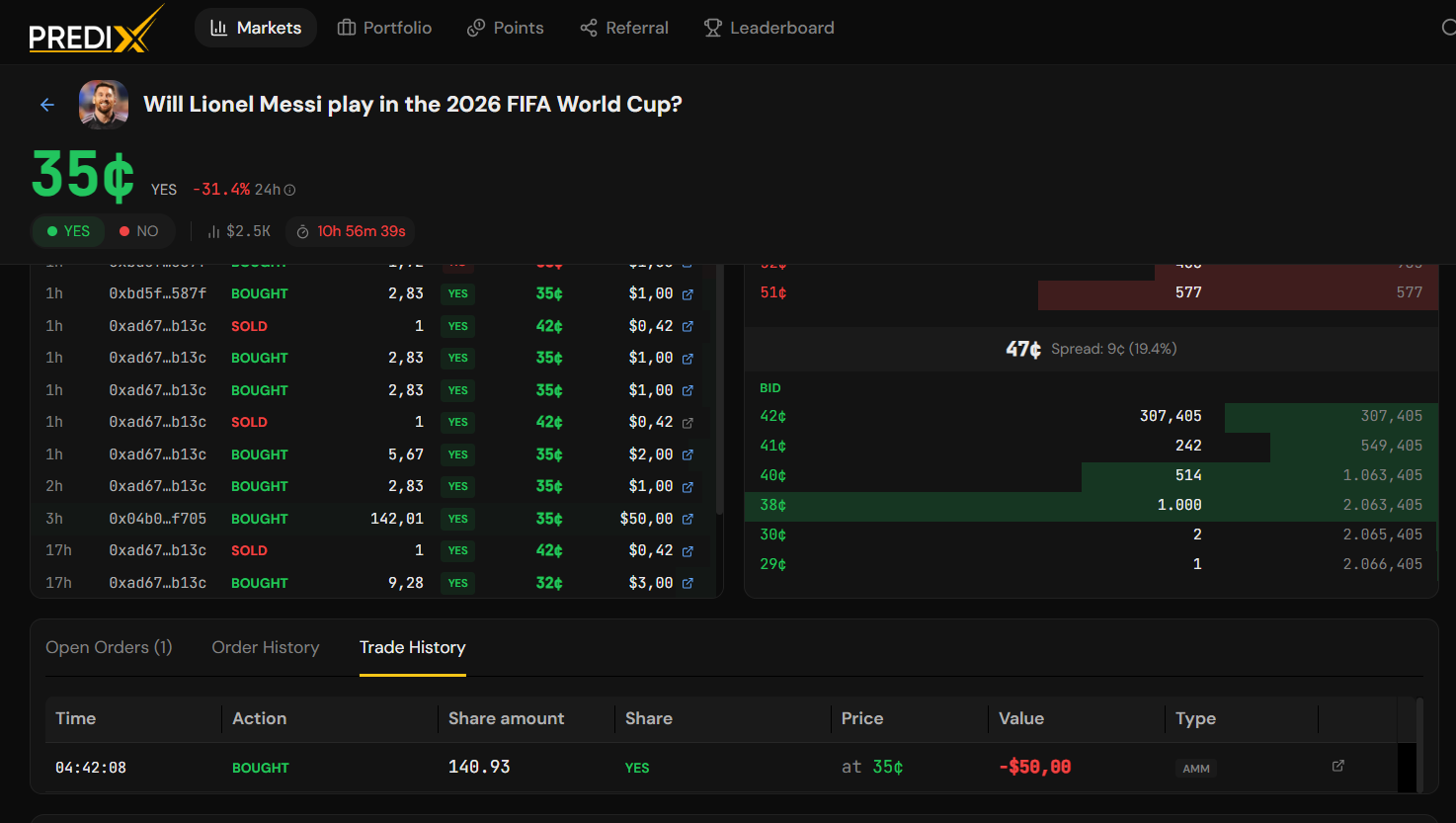
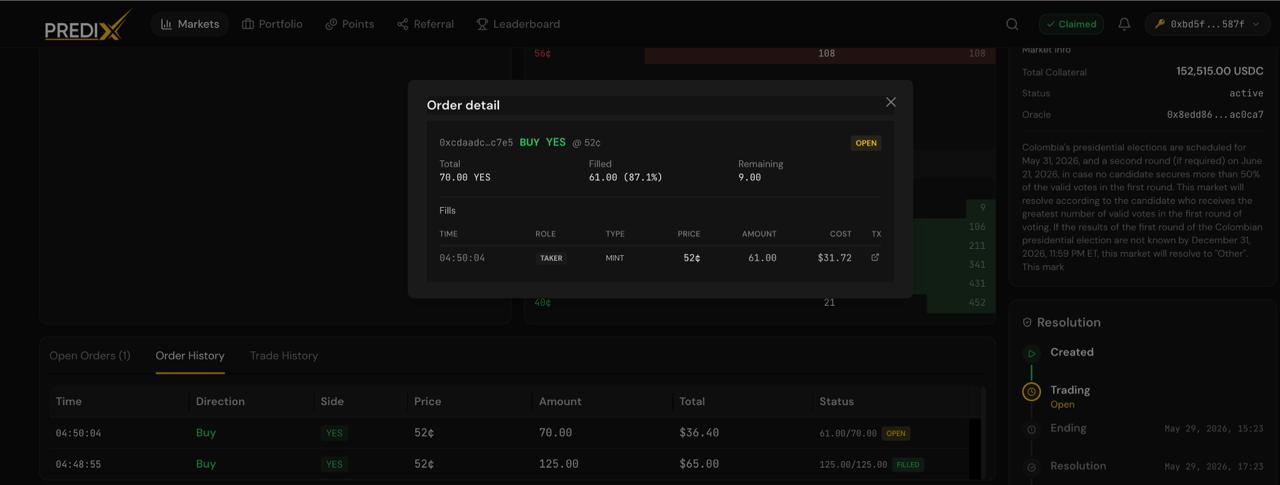
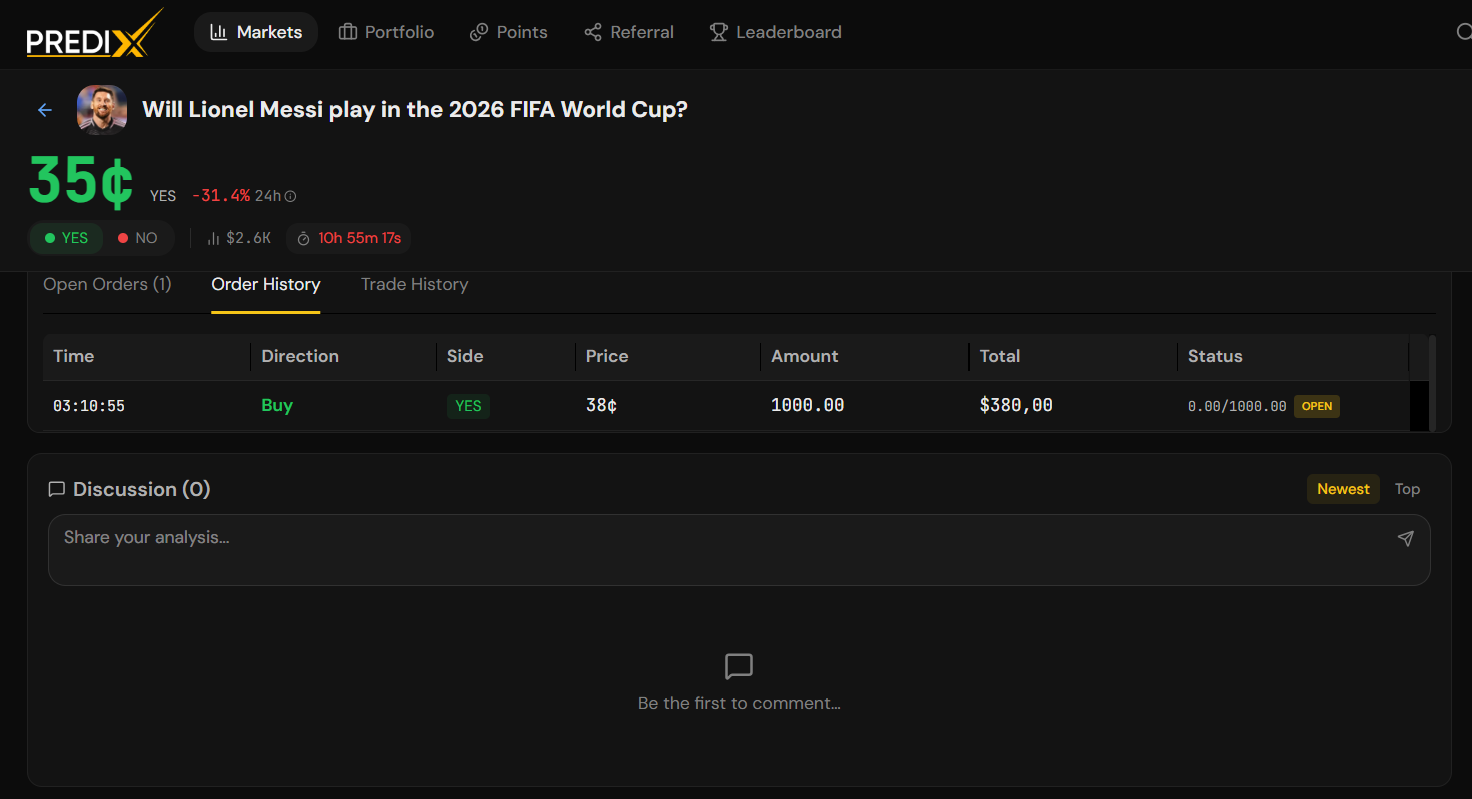
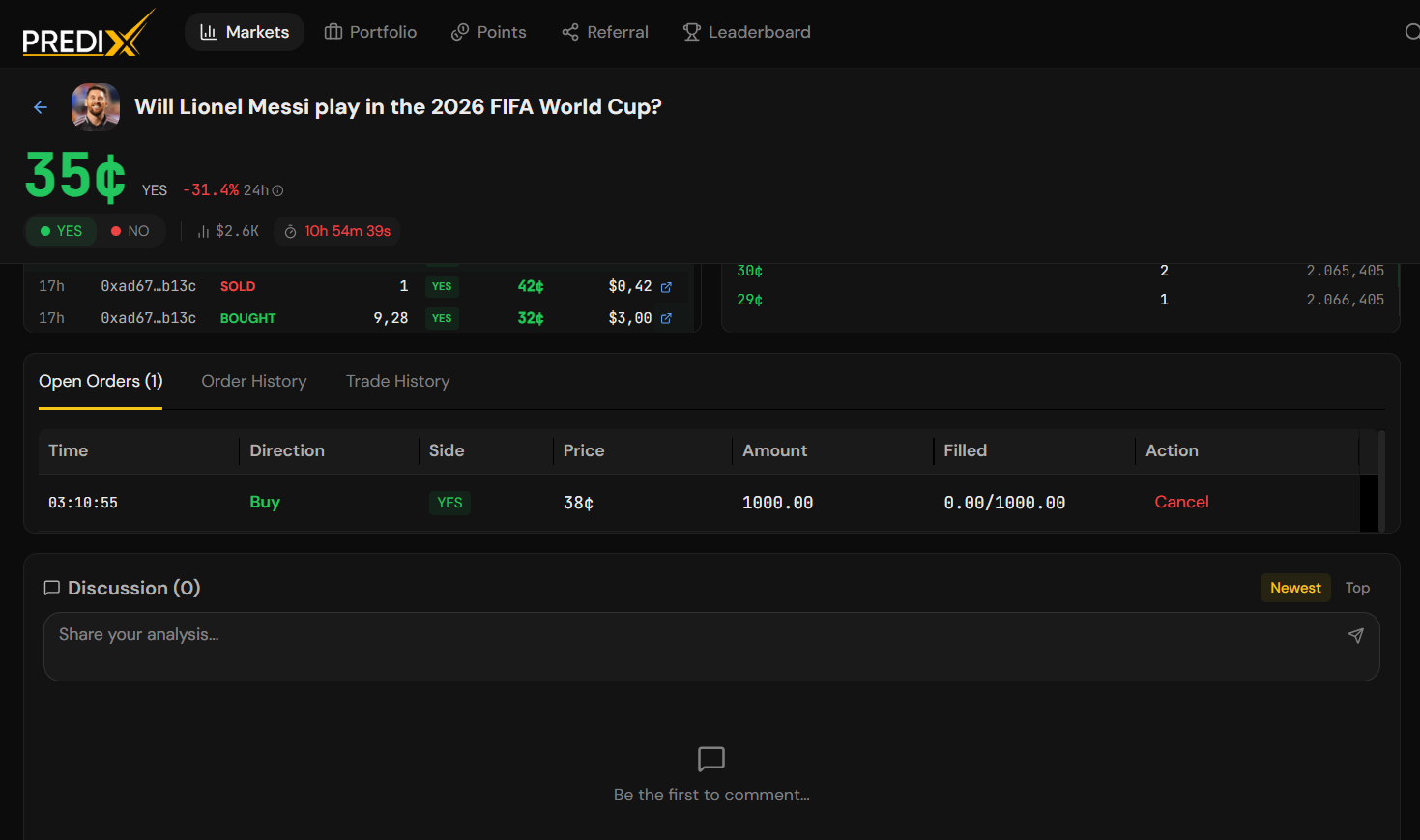
You can also view orders for a specific market on the market detail page, under the Orderbook tab → My Orders.
Cancelling Orders
Section titled “Cancelling Orders”How to Cancel a Single Order
Section titled “How to Cancel a Single Order”-
Step 1: Locate Your Order
- Navigate to your Portfolio and select the Orders tab.
- Alternatively, go to the specific market’s detail page and find the My Orders tab.
-
Step 2: Initiate Cancellation
- Find the specific order you wish to close.
- Click the Cancel button located next to the order details.
-
Step 3: Confirm in Wallet
- A prompt will appear in your wallet (e.g., Biometric scan for Passkeys or a pop-up for MetaMask).
- Confirm the transaction to authorize the cancellation.
-
Step 4: Funds Released
- Once the transaction is processed, your locked USDC or tokens are immediately returned to your wallet balance within the same transaction.
Cancel Multiple Orders
Section titled “Cancel Multiple Orders”Select multiple orders with checkboxes, then click Cancel Selected:
| Wallet Type | Behavior |
|---|---|
| Passkey + Smart Account |
|
| Web3 Wallet (EOA) |
|
Cancel All Orders
Section titled “Cancel All Orders”Click Cancel All at the top of the Orders tab to cancel every open order across every market in one click.
| Wallet Type | Behavior |
|---|---|
| Passkey + Smart Account |
|
| Web3 Wallet (EOA) |
|
Programmatic Cancel (API)
Section titled “Programmatic Cancel (API)”For bots and automated strategies, the same cancel functions are available via API:
- Cancel a single order
- Cancel orders in batch
- Cancel all orders in a market
Editing Orders
Section titled “Editing Orders”PrediX does not support direct order editing. To change an order’s price or size, you must:
- Cancel the existing order
- Place a new order with the updated parameters
For bots that frequently update quotes, the API supports cancelAndReplace - a single atomic operation that cancels and re-places in one transaction. See API → Replace Order.
Partial Fills
Section titled “Partial Fills”A limit order can be filled incrementally as different takers hit it:
BUY YES @ $0.45, 100 USDC → taker 1 fills 40 USDC at $0.45 → taker 2 fills 30 USDC at $0.45 → 30 USDC remains on the book → Status: PARTIALYou have two options for the remainder:
| Option | When |
|---|---|
| Wait | Let the rest fill at the same price |
| Cancel | Take what’s filled, get the remaining 30 USDC back |
Filled portions are immediately yours - you don’t need to wait for the order to be 100% filled before holding the shares.
Automatic Cancellation
Section titled “Automatic Cancellation”Orders are automatically cancelled in two scenarios - you don’t need to do anything:
| Scenario | What happens |
|---|---|
Market reaches endTime |
|
| Market enters refund mode |
|
You’ll receive a notification when this happens. Check Portfolio → History to see the OrderCancelled event with reason MARKET_ENDED or REFUND_MODE.
Order Status
Section titled “Order Status”| Status | Meaning |
|---|---|
| OPEN |
|
| PARTIAL |
|
| PENDING |
|
| FILLED |
|
| CANCELLED |
|
Order Limits
Section titled “Order Limits”| Parameter | Value |
|---|---|
| Max open orders per user |
|
| Max total open orders |
|
| Min order size |
|
| Tick size |
|
If you hit these limits, you’ll need to cancel existing orders before placing new ones.
Notifications
Section titled “Notifications”The app notifies you when:
- An order fills (full or partial)
- An order is cancelled (manual, auto, or refund mode)
- An order is nearing endTime (24h / 1h / 5min warnings)
- An order is stale (more than 7 days old with no fills)
Toggle notification settings in Notifications & Alerts.